Mouse Double-Clicking on Its Own? How to Fix It Now

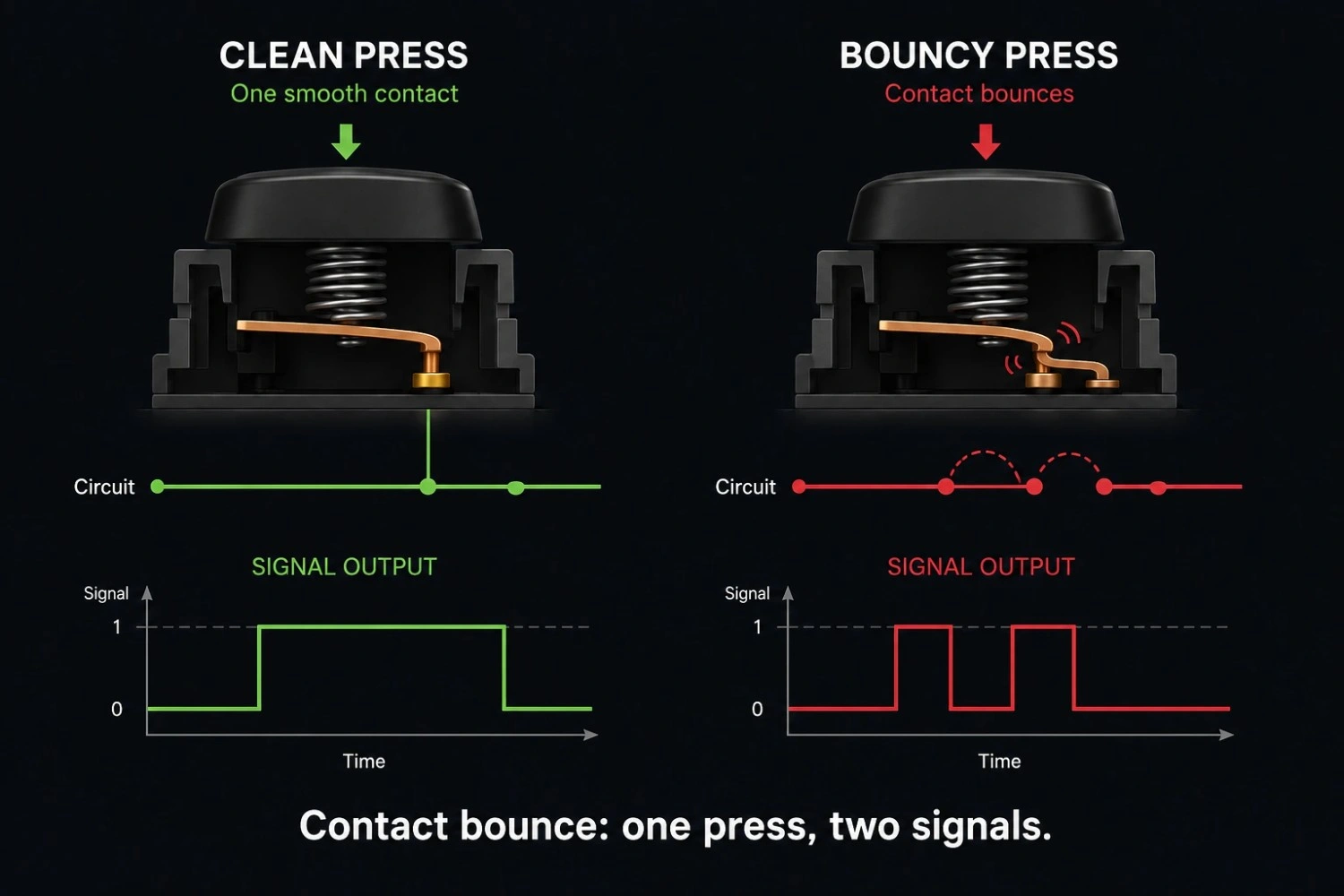
When a mouse double-clicks on its own, the switch under the button is usually worn out. One press bounces and sends two signals instead of one. Before you buy anything new, try lowering your double-click speed or cleaning the switch; that fixes it for most people.
Why Does My Mouse Double-Click on Its Own?
A single press should send one signal to your computer. When it sends two, something between the switch and your screen is going wrong. There are four common reasons.
A Worn-Out Switch (Contact Bounce)
Every mouse button sits on top of a small switch. Press it, and two metal contacts touch. That touch sends the click signal.
Over time, those contacts wear down. Instead of touching once and staying put, they touch, bounce apart, and touch again in a tiny fraction of a second. Your computer reads that bounce as two separate clicks. This is called contact bounce. It is the single most common cause of random double-clicking.
Cheaper switches tend to fail sooner. Heavy daily use speeds up the wear too.
Dust and Debris Under the Button
Dust, crumbs, or pet hair can settle under the button shell. This changes how the switch makes contact. Sometimes it causes a delayed click. Sometimes it causes a doubled one.
This shows up most often on older mice that have never been opened or cleaned.
A Software or Driver Setting
Your operating system has its own double-click speed setting. If that setting is too sensitive, two clicks made close together can merge into a double-click, even when you meant two separate single clicks. Mouse software from brands like Logitech or Razer can misfire too, especially after a corrupted profile or a rough driver update.
A Loose or Failing Connection
Wireless mice need a clean signal between the mouse and the receiver. A weak battery, nearby interference, or a loose USB dongle can cause a single click to register more than once. Wired mice can show the same fault with a damaged cable or a failing USB port.
How to Tell If It's the Switch or the Settings
Before fixing anything, it helps to know what you're dealing with. A quick check makes this clear.
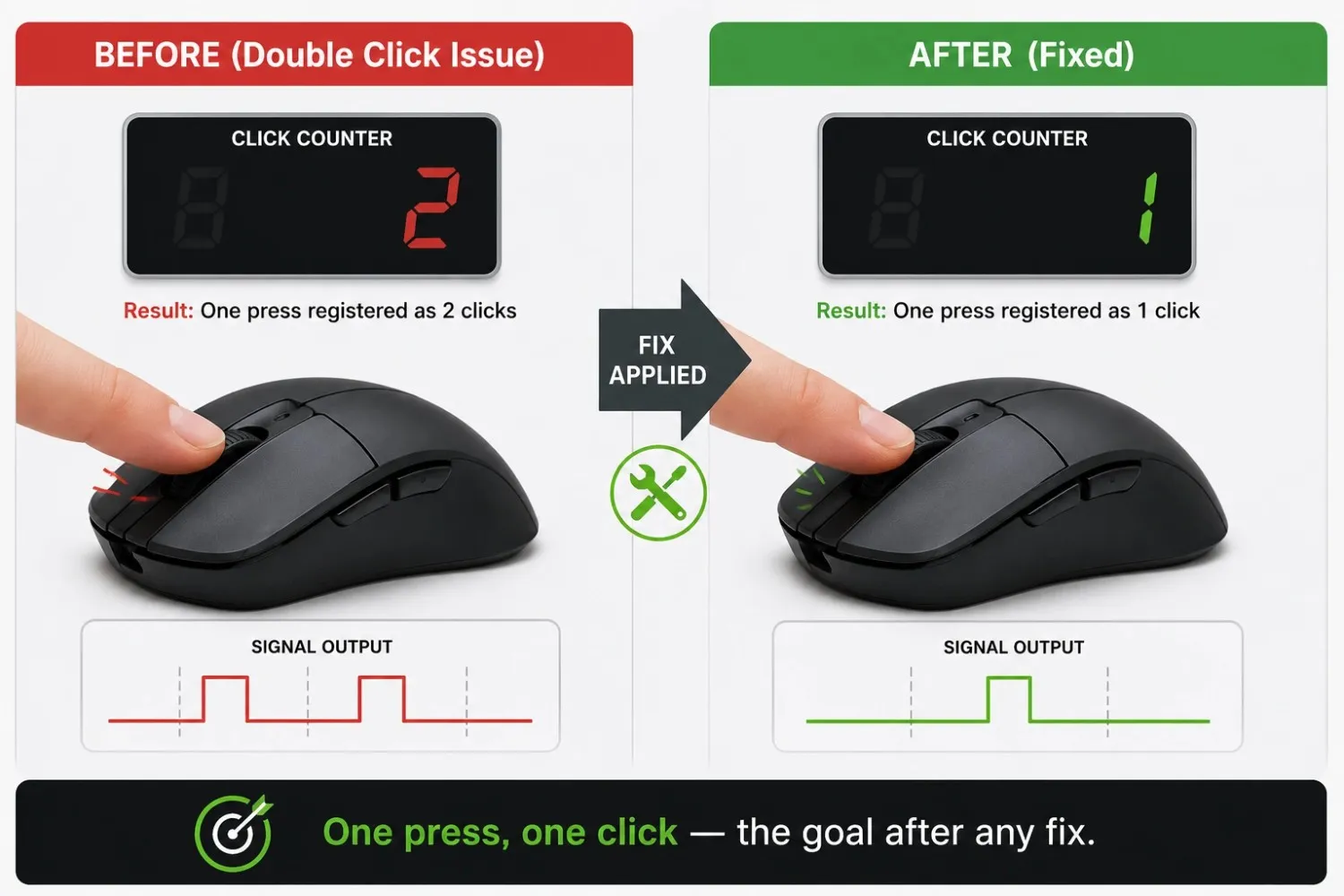
Click your left button once, slowly, ten times in a row. Count how many clicks you meant to make. Then look at how many your computer actually registered. A short double-click test will show you that exact count for every single press, side by side, so you are not relying on memory.
If the count matches every time, your settings are probably fine, and the fault lies with the hardware. If it only slips up sometimes, especially during fast clicking, that points more toward a worn switch than a setting.
Double-Clicking vs. Other Mouse Issues
Double-clicking is not the only mouse problem people mix up with something else. It helps to know what it is not.
A double click adds an extra signal that should not exist at all. A delayed or "laggy" click is different. The signal is there, but it shows up late. If your clicks feel slow rather than doubled, the cause is rarely a worn switch. Checking your mouse's polling rate consistency usually points to the real problem instead, since an unstable Hz reading delays input without ever duplicating it.
Knowing the difference saves you from fixing the wrong thing.
How to Fix a Mouse That Double-Clicks on Its Own
Work through these fixes in order. Start with the easy ones. Move to the more involved steps only if the problem sticks around.
Adjust Your Double-Click Speed Setting
This is the easiest fix, and it solves the problem more often than people expect. Lowering the sensitivity gives your system more room to tell two separate clicks apart from one true double-click.
On Windows, you will find this slider inside your computer's built-in mouse settings panel. Move it toward "slow," apply the change, and test it with a few real clicks. On a Mac, the same setting sits under Accessibility, inside Pointer Control.
Clean Around and Under the Button
Unplug the mouse first. Use a can of compressed air around the button edges and the scroll wheel. On mice with a removable shell, a soft brush and a small amount of isopropyl alcohol on the contact points can clear out grime that's interfering with a clean press.
Update or Reinstall the Mouse Driver
Open your mouse manufacturer's software and check for an update. If one exists, install it. If the software itself feels broken, uninstall it completely, restart your computer, and reinstall a fresh copy. A corrupted profile causes more misfires than most people assume.
Open the Switch and Clean the Contacts (Advanced)
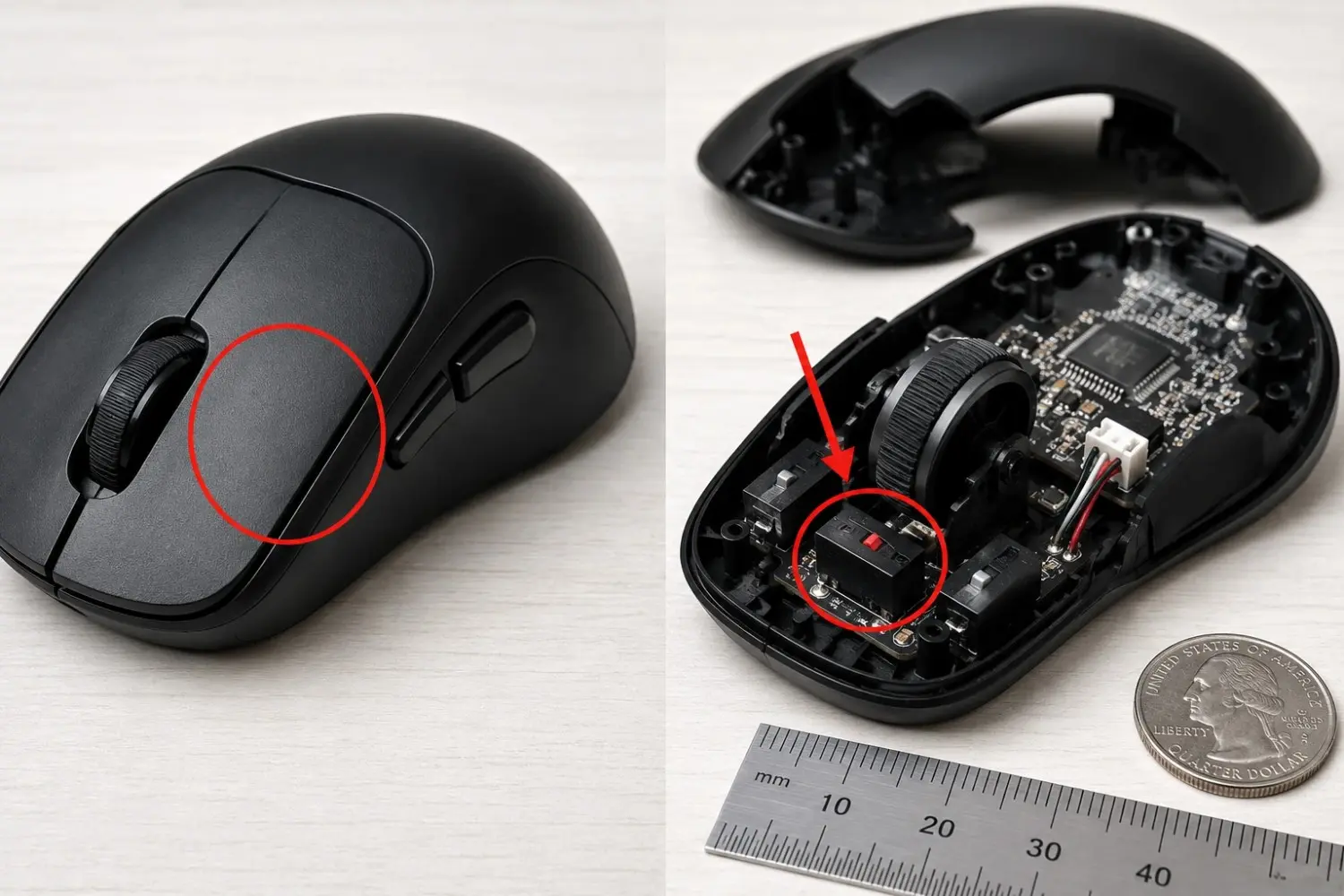
If the steps above do not help, the switch itself may need direct attention. This means opening the mouse shell, which usually voids any warranty. Only try this if your mouse is already out of warranty.
Once it's open, find the switch under the problem button. A small amount of contact cleaner, applied carefully and left to dry, can restore a clean connection. Some users solder in a brand-new switch instead, since replacement switches cost very little.
Replace the Mouse
If the fault keeps coming back after cleaning, and the mouse is several years old, the switch has likely reached the end of its life. At that point, replacing the mouse is more practical than another round of repairs.
When Is It Time to Replace the Mouse?
A few signs point toward replacement rather than repair:
- The double-click fault returns within days of cleaning
- It happens on more than one button
- The mouse is three or four years old, with daily use
- Opening it reveals visible corrosion or a cracked switch housing
If none of those apply, cleaning and a setting change are usually enough.
Quick Fix Reference
| Cause | Fix to Try First |
|---|---|
| Worn switch (contact bounce) | Lower the double-click speed, then clean the switch |
| Dust under the button | Compressed air, then isopropyl alcohol |
| Driver or software glitch | Reinstall the mouse software |
| Weak wireless signal | New battery, move the receiver closer |
| Switch near the end of life | Replace the switch or the mouse |
How to Stop It From Coming Back
A few small habits keep a fixed mouse fixed for longer.
Wipe down your mouse and mousepad once a month. A clean surface means less dust finds its way under the button shell. Avoid eating at your desk if you can help it. Crumbs are one of the most common things found inside a misfiring switch.
Set your double-click speed once and leave it alone. Constant tweaking makes it harder to tell whether a future click problem is a real fault or just a setting that drifted again.
If you use mouse software from your manufacturer, check for updates every few months instead of waiting for a problem to force the issue. A current driver rarely causes the kind of misfire an outdated one can.
Finally, give a wireless mouse fresh batteries before they run all the way down. A mouse running on weak power is far more likely to drop signals or send odd extra clicks than one with full power.
Conclusion
A mouse that double-clicks on its own is annoying, but it's rarely a mystery once you know where to look. Most of the time, it comes down to a worn switch, some trapped dust, or a setting that's too sensitive for your clicking speed.
Start with the easy fixes first. Try the double-click speed slider and a quick clean before assuming the worst. If the problem keeps coming back after that, you will know the switch itself has worn out, and replacing it or the mouse is the next honest step.
Frequently Asked Questions
Why does my mouse click twice when I only click once?
This usually happens because the switch under the button is wearing out. The metal contacts touch, bounce apart, and touch again within a few milliseconds. Your computer reads that bounce as two separate clicks.
Can a software update cause double-clicking?
Yes. A corrupted driver, a bad mouse software profile, or a double-click speed setting that's too sensitive can all make clicks register as doubles, even when the hardware itself is fine.
Does cleaning a mouse actually fix double-clicking?
Often, yes. Dust and debris under the button can interfere with a clean press. Compressed air and a small amount of isopropyl alcohol on the contact points clear this up in many cases.
Is double-clicking a sign that my mouse is dying?
Not always. If it's a recent issue and goes away after cleaning or a setting change, the mouse is fine. If it keeps returning despite cleaning, the switch has likely reached the end of its working life.
Can I fix double-clicking without opening the mouse?
Yes, in many cases. Lowering your double-click speed setting and cleaning around the button from the outside solves the problem for a lot of users without ever opening the shell.
Does double-clicking happen more on wireless mice?
It can. A weak battery or a poor connection between the mouse and its receiver can cause irregular signals, including extra clicks. Wired mice avoid that specific cause but are not immune to a worn switch.
How do I know if it's the switch and not my own clicking habit?
Click slowly and deliberately several times in a row. If the registered count matches your physical presses every time, your habit is fine, and the issue lies elsewhere, likely a setting or driver. If it mismatches even with slow, deliberate clicks, the switch is the more likely cause.