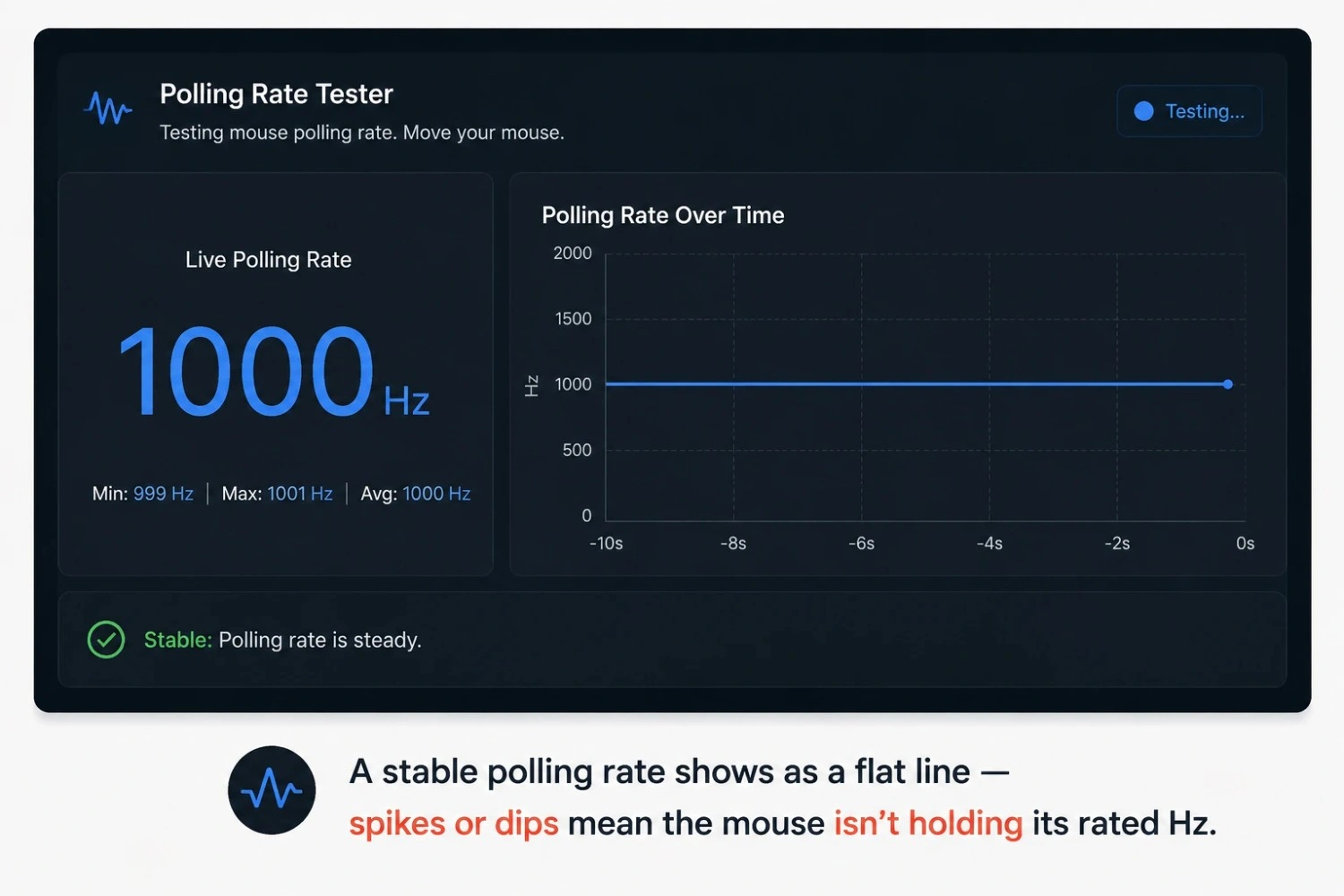
Mouse Polling Rate Tester Online: How to Test Your Mouse Hz
The mouse Hz tester on this page runs in your browser. There is no download and no account. Open the page. Move your mouse inside the test zone. The tool starts reading your polling rate right away.
Here is how to run it properly:
Step 1: Move your mouse continuously inside the test zone.
The tool needs steady movement to calculate Hz. Keep the cursor moving in small circles for a few seconds.
Step 2: Watch the live Hz counter.
Compare the number to your mouse's advertised rate. A 1000Hz mouse should sit close to 1000, not bounce between 600 and 1000.
Step 3: Check the consistency graph, not just the peak number.
A mouse can hit its rated Hz for a split second and then drop. A flat line is a pass. A jagged line is a fail, even if the peak looked fine.
Step 4: Test both wired and wireless modes if your mouse supports both.
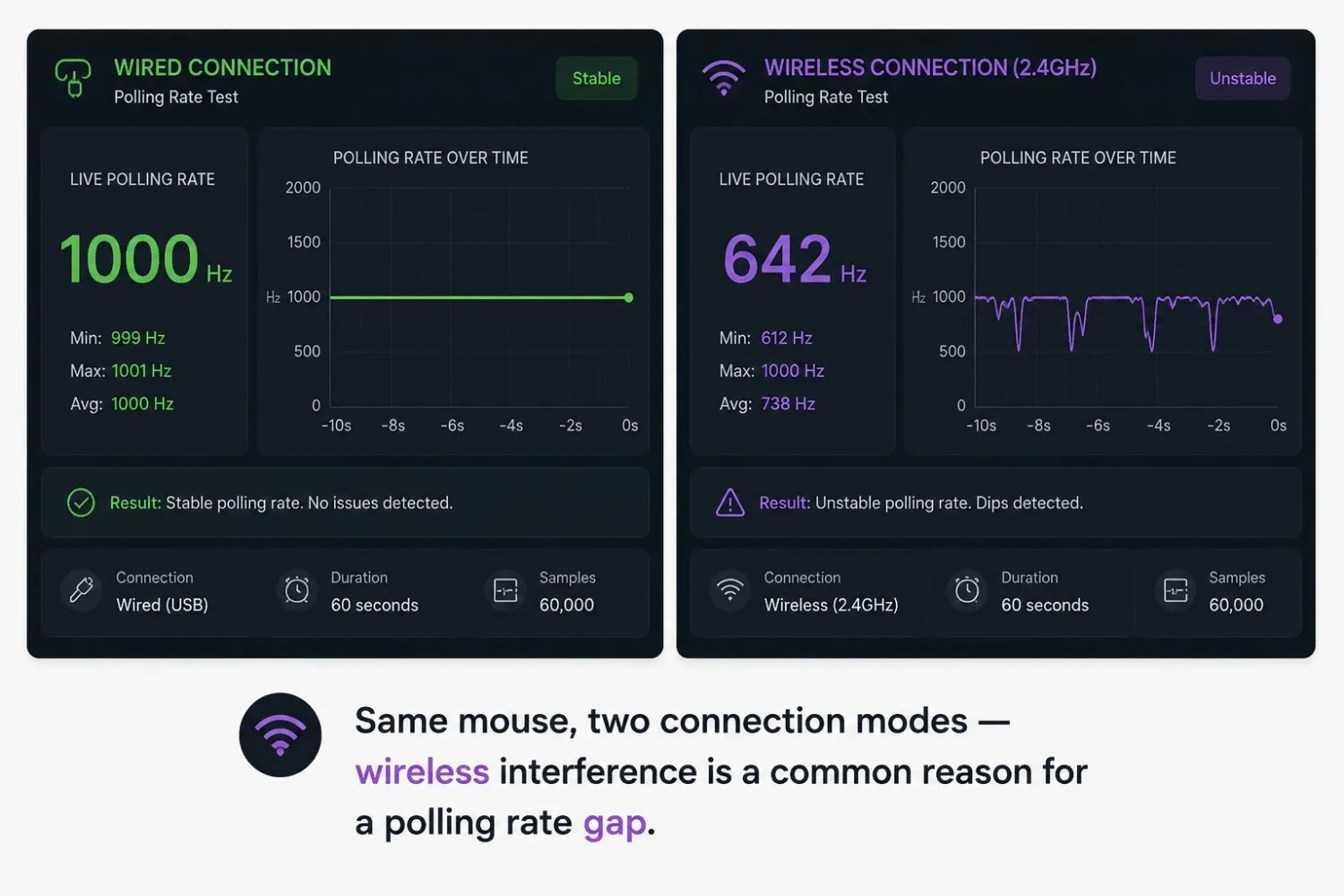
Wireless mode often reports a lower or less stable Hz than wired, especially near other 2.4GHz devices.
Step 5: Try a different USB port if your reading looks low.
Older USB ports and hubs can cap the polling rate. Switching ports is the fastest way to rule this out.
Polling Rate Tester vs Hz Reading vs Speed Tester
A polling rate check and an Hz reading describe the same thing: how many times per second your mouse reports its position, shown live. Whether you search for a mouse tester polling rate tool, a mouse hertz tester, or a mouse tester Hz tool, you run the same test.
A mouse speed tester is different. It checks cursor speed relative to your DPI and sensitivity settings, not how often the mouse reports position. A mouse can move slowly with a high polling rate, or move fast with a low one.
What Is a Mouse Polling Rate Tester?
A mouse polling rate tester is a browser tool that checks how often your mouse reports its position to your computer, and the result shows up in Hz. This is different from a basic mouse Hz tester that just repeats the number printed on the box. This tool watches your mouse live and tells you if that number holds steady or drops during normal use.
Most people only check the polling rate after something feels wrong. A mouse sold as 1000Hz might report at 500Hz on a cheap USB extension. A wireless mouse rated for 4000Hz can fall back to 1000Hz when the second battery saver kicks in. The number on the box is a ceiling, not a promise, and your actual rate depends on your cable, your USB port, and your setup. A polling rate tester mouse check shows you the real number in under a minute.
Why Polling Rate Matters
In fast shooters, your physical movement and what the game sees are not the same thing. A higher Hz value means your mouse sends updates more often, so the game works with fresher data on every frame. This matters most during quick flicks and tight corrections, where a stale position reading can make a clean shot look like a miss. You do not need to be competitive to care, either. A mouse that polls unevenly can make normal use feel slightly off, like a jumpy drag or a choppy timeline scrub. Most people only notice this once they compare two mice side by side.
Common Polling Rate Problems This Tool Detects
- Mouse reporting below its advertised Hz value
- Polling rate that fluctuates instead of holding steady
- Wireless mice are dropping to a lower rate under interference
- USB port limitations are capping the actual report rate
- Inconsistent Hz readings between wired and wireless modes
How to Test Mouse Latency and Input Delay
Polling rate and latency are related, but they are not the same thing. Polling rate is how often your mouse reports its position. Latency is how long it takes for a physical movement to show up on screen, start to finish. A mouse latency tester looks at the whole chain: sensor, polling, USB transfer, and OS processing.
A mouse with a high polling rate can still feel laggy if another part of that chain is slow. This is why a mouse delay tester and a mouse response tester often get paired with a polling rate check. A clean Hz reading does not guarantee low latency, and a mouse output tester adds one more piece by checking signal quality, not just timing, looking for dropped packets or gaps in the data.
A latency number on its own does not mean much. What matters is consistency. Does the delay stay roughly the same across a session, or spike randomly? A steady 8ms delay is rarely something you will notice. A delay that jumps between 2ms and 40ms in the same minute is the kind of inconsistency that changes how a mouse feels.
Understanding Polling Rate: 125Hz, 500Hz, 1000Hz, 4000Hz and 8000Hz
| Polling Rate | Update Interval | Common Use |
|---|---|---|
| 125 Hz | 8ms | Budget mice, basic office use |
| 500 Hz | 2ms | Mid-range gaming mice |
| 1000 Hz | 1ms | Standard for competitive gaming |
| 4000 Hz | 0.25ms | High-end gaming mice |
| 8000 Hz | 0.125ms | Flagship competitive mice |
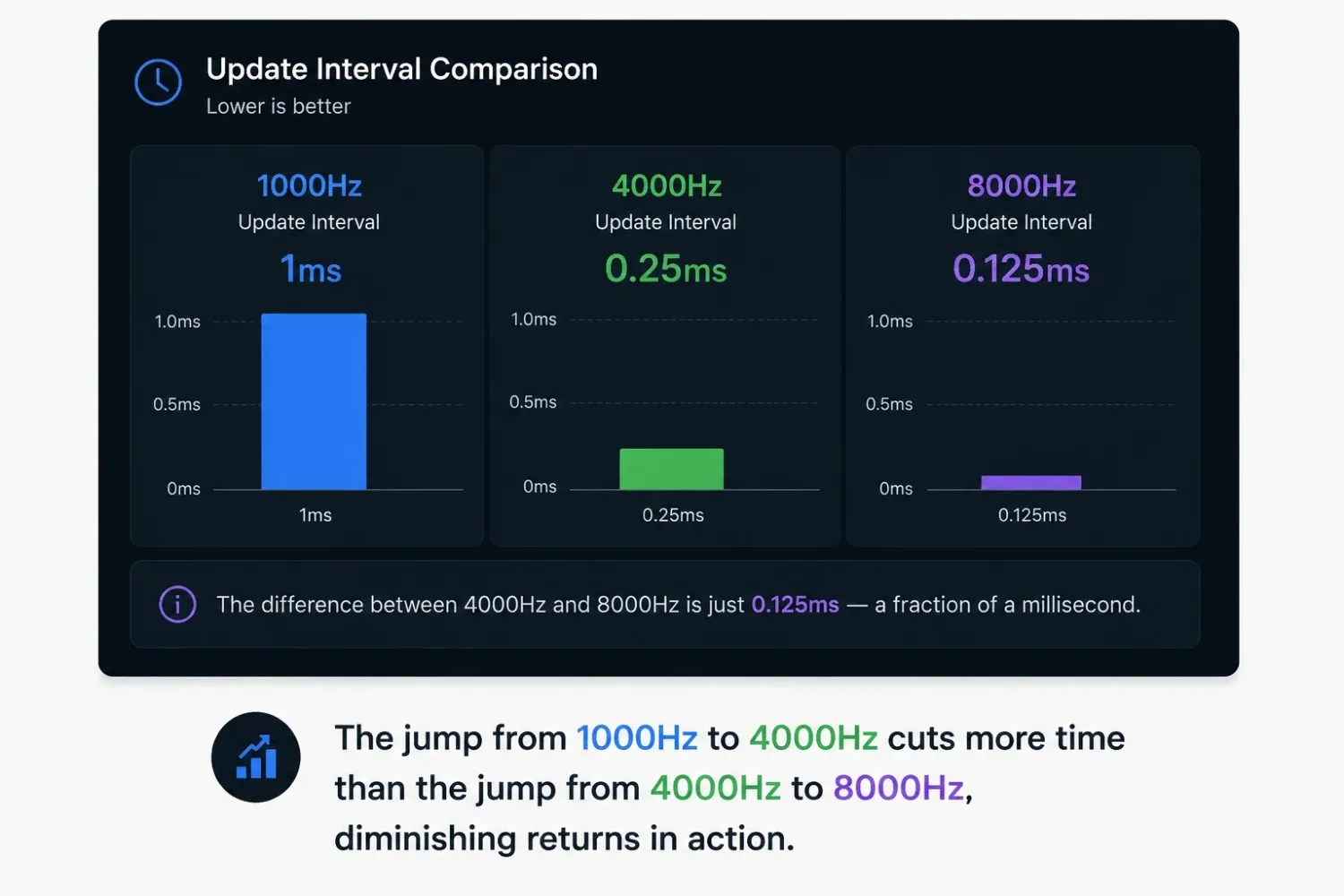
Every polling cycle is a USB HID report, the standard way a mouse talks to a computer over USB. The mouse sends an update at a fixed interval instead of streaming data nonstop. At 125Hz, it checks in roughly every 8 milliseconds. Higher polling rates simply shrink that window, down to every 0.125ms at 8000Hz.
A higher polling rate can make cursor movement feel smoother, but very high rates add a bit of load to your system. Extra USB traffic and CPU usage at high report rates can cause small FPS dips in some games, which is part of why most competitive setups land at 1000Hz or just a step above it.
1000Hz vs 4000Hz vs 8000Hz Polling Rate: Is Higher Always Better?
This is one of the most argued specs in mouse hardware. The honest answer depends on your monitor, your game, and your system's headroom.
A pattern shows up often in gaming communities. Many players who have used both 1000Hz and 4000Hz or 8000Hz mice say they cannot feel a real difference during actual play, while a smaller group insists the higher rate feels smoother on monitors with a refresh rate above 240Hz. Several point out that anything past 2000Hz starts hitting diminishing returns, with extra battery drain on wireless mice and added strain on weaker systems.
A more technical view frames this differently. Polling rate is not about whether your monitor can "see" the extra updates. It is about shrinking the gap between when your hand moves and when the freshest position data is ready for the game engine, a gap that shrinks by fractions of a millisecond past 1000Hz, well below what most people can notice.
What Gamers Actually Say About High Polling Rates
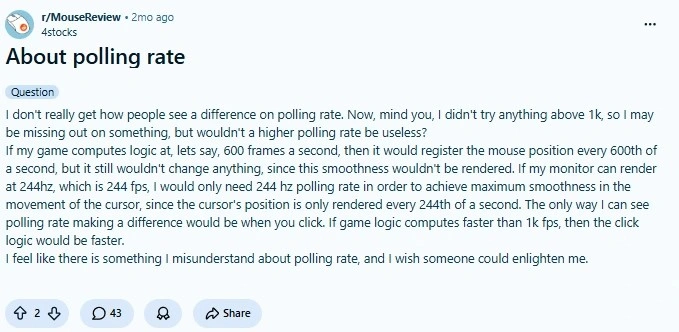
A frequently cited discussion among mouse enthusiasts captures this disagreement well. One user asked a fair question: if a monitor renders at a fixed refresh rate, why would polling above that rate matter at all? The top reply pushed back directly. A mouse, a CPU's frame scheduling, a GPU's rendering, and a monitor's refresh rate all run on separate, unsynced clocks, so matching polling rate to monitor Hz does not guarantee the input data lines up with each rendered frame. The commenter argued that true maximum smoothness would only come from near-infinite polling and refresh rates together, since higher polling rates mostly help by shrinking the gaps between frames rather than syncing to one number.
A clean button count and a stable Hz reading do not always mean a mouse reports reliably under fast clicking. Running a double-click check alongside the Hz test catches that separately, since one measures the timing of position reports and the other measures whether a single press fires as one clean event.
Mouse Polling Rate vs DPI vs CPS
Polling rate gets confused with two other specs, since all three involve a number that climbs when a mouse is marketed as "better." They measure three different things.
DPI, or dots per inch, sets how far your cursor moves on screen for a given physical distance. It is a sensitivity setting. Polling rate sets how often your mouse tells the computer where it currently is. It is a timing setting. A mouse can have high DPI and a low polling rate, or the reverse. If your aim feels off or mismatched across games, that points to DPI. If your cursor lags behind your hand, that points to the polling rate.
CPS, or clicks per second, measures how fast you can physically click a button, and it has nothing to do with either DPI or polling rate. A mouse with a weak polling rate can still post a high CPS score in a jitter-click test, since CPS only measures finger speed. If you are diagnosing a polling rate issue, a CPS test will not help.
What People Are Actually Asking About Polling Rate
Two questions show up again and again across gaming forums.
The first is whether polling above 1000Hz is worth it, or whether it is just a marketing number. Opinion is split. Some users notice a real, if subtle, difference on very high refresh monitors. Many others cannot tell 1000Hz from 4000Hz or 8000Hz during actual play, and only notice the battery or performance cost of running higher.
The second is whether the polling rate should match your monitor's refresh rate. A common rule of thumb pairs roughly 2000Hz with monitors around 168Hz and above, and 4000Hz with monitors around 336Hz and above, though plenty of users push back on a strict ratio since the mouse and monitor clocks are not actually synced. What most discussions agree on is that 1000Hz is enough for most players, with 2000Hz as a fair middle ground for anyone who wants a small step up.
For a deeper look at how report rate and frame timing interact, Logitech's explainer on mouse polling rate is a useful reference for why higher Hz does not always translate into a feeling you can notice.
The Polling Rate Health Check
Run these four checks in order for a full read on your mouse's polling rate.
Step 1: Test wired polling rate first
Plug in directly, avoid hubs and extension cables, and check the live Hz reading against your mouse's rated spec.
Step 2: Test wireless polling rate separately
If your mouse supports wireless, repeat the test in that mode and note any drop versus the wired result.
Step 3: Watch the consistency graph, not the peak
A momentary spike to your rated Hz is not a pass if the line stays jagged the rest of the time.
Step 4: Try a different USB port or move the dongle closer
If wired results look capped, switch ports. If wireless results are unstable, move the dongle closer to the receiver.
Results Benchmark Table
| Test | Healthy Result | Problem Signal |
|---|---|---|
| Wired polling rate | Holds within 5–10% of rated Hz | Frequent drops below the rated value |
| Wireless polling rate | Close to a weird result | Significant gap versus wired mode |
| Consistency graph | Flat, steady line | Spikes, dips, or jagged patterns |
| Port comparison | Same reading across ports | Noticeably lower reading on older ports |
Once polling rate checks out, sensitivity is usually the next thing worth checking, since DPI and in-game multipliers shape how that steady input actually feels. A mouse sensitivity check can help spot anything that still feels off once timing is no longer the issue.
Conclusion
Polling rate answers a narrow but useful question: is your mouse actually reporting position data at the rate it claims, or is something between the sensor and your screen holding it back?
The test on this page reads your mouse's Hz live, right in your browser, with no installation needed. It works with wired and wireless mice, from 125Hz budget mice up to 8000Hz flagship hardware. A steady reading near your rated spec means the hardware is doing its job. A jagged or capped reading points to a USB port, a wireless issue, or a driver setting worth checking before you blame the mouse.
The number on the box is a ceiling, not a guarantee. Testing is the only way to know what you are actually getting.
Frequently Asked Questions
What is a good polling rate for a mouse?
For most users, 1000Hz is enough and is the standard for competitive gaming. Going higher gives diminishing returns and mainly helps players on very high refresh monitors.
How do I check my mouse Hz?
Open a mouse hz tester, move your mouse continuously inside the test zone, and watch the live readout. The number should sit close to your mouse's advertised rate without frequent dips.
Is an 8000Hz polling rate worth it?
For most players, no. The practical gap between 4000Hz and 8000Hz is a fraction of a millisecond, and many users say they cannot feel it in real gameplay. It can also drain wireless batteries faster.
Why does my wireless mouse show a lower polling rate than advertised?
Wireless mice can lose polling consistency from interference, distance from the receiver, low battery, or power-saving settings. Test wired first for a baseline, then test wireless to see if the gap is connection-related.
Should my polling rate match my monitor's refresh rate?
Not exactly, since the mouse and monitor run on separate, unsynced clocks. As a rough guide, many users pair 1000–2000Hz with monitors up to roughly 240Hz and only move higher on monitors well above that.