How to Test Your Mouse Sensitivity Online
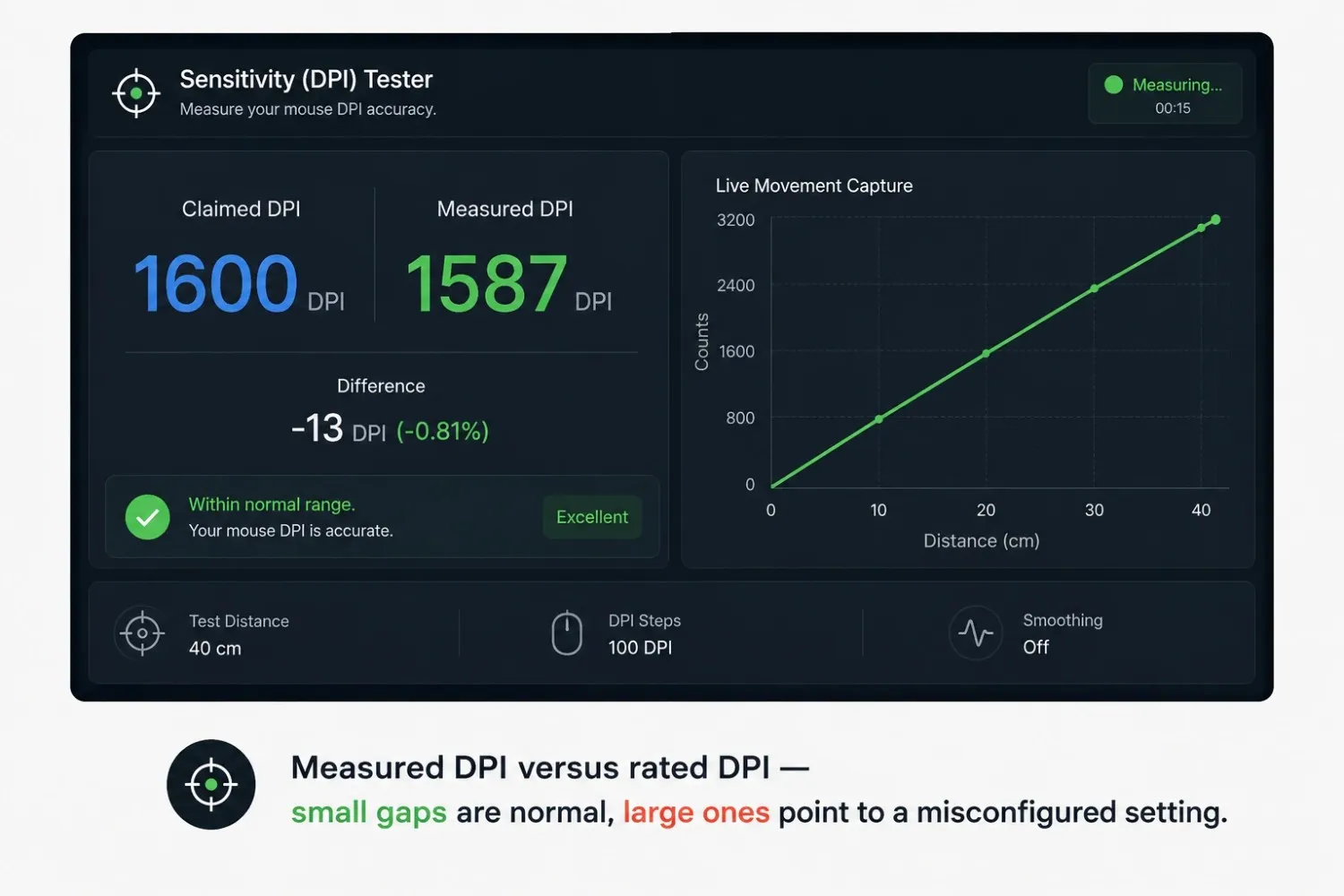
The tool on this page runs in your browser. No download. No install. No account. Move your mouse a known distance, and it calculates your effective DPI based on the actual cursor travel.
- Set your mouse DPI using your mouse software or DPI button.
- Enter it as Claimed DPI, click the blue number, and type your value.
- Set Test Distance default is 40 cm; mark it on your mousepad with a ruler or tape.
- Click Start Measuring; the timer starts, and movement capture begins.
- Move your mouse across the marked distance in one straight line.
- Click Stop (or press Space / Esc).
- Read your result: Measured DPI, the difference, and the verdict banner.
- Repeat 2–3 times to confirm the readings stay consistent.
DPI vs Sensitivity: What Is the Difference?
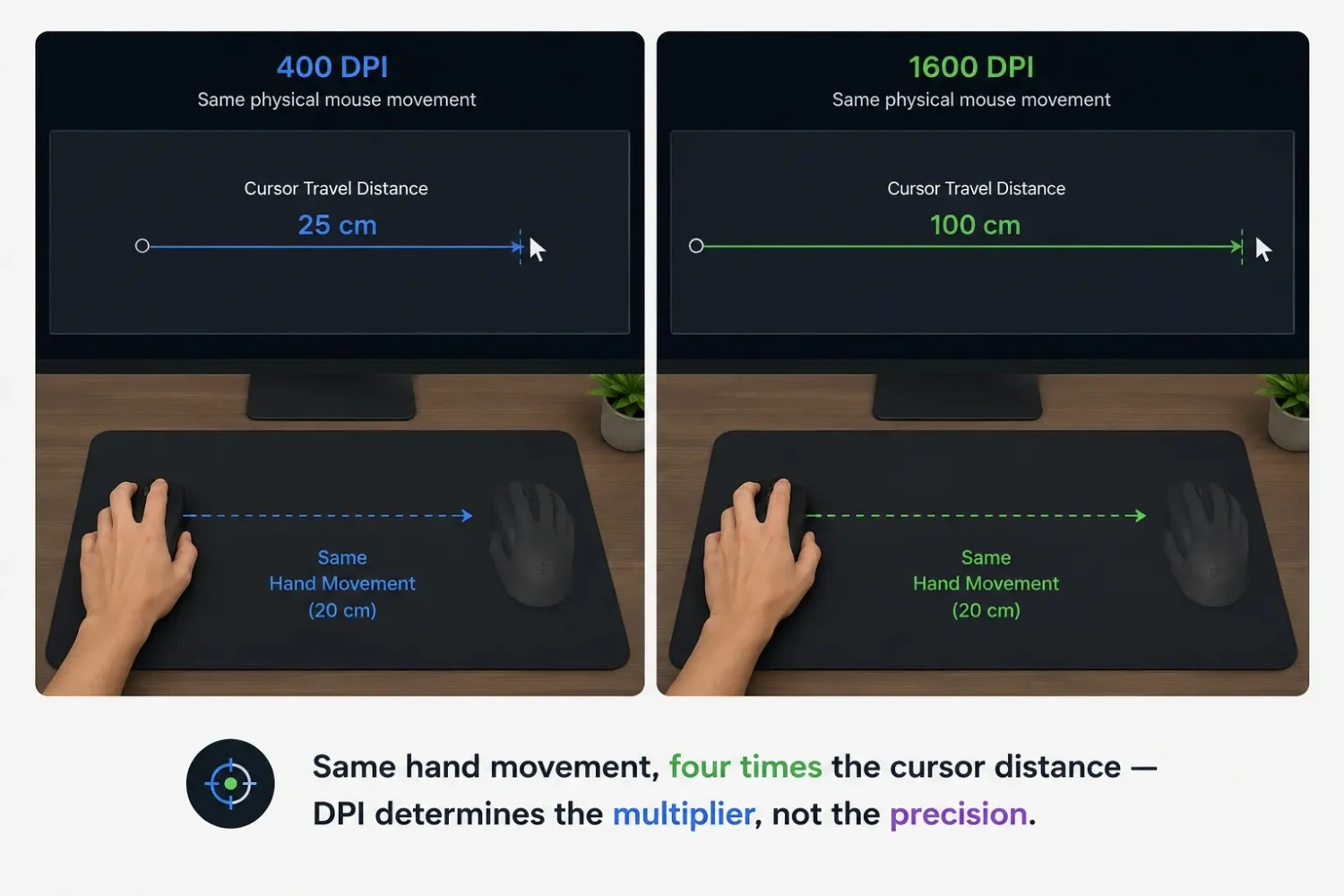
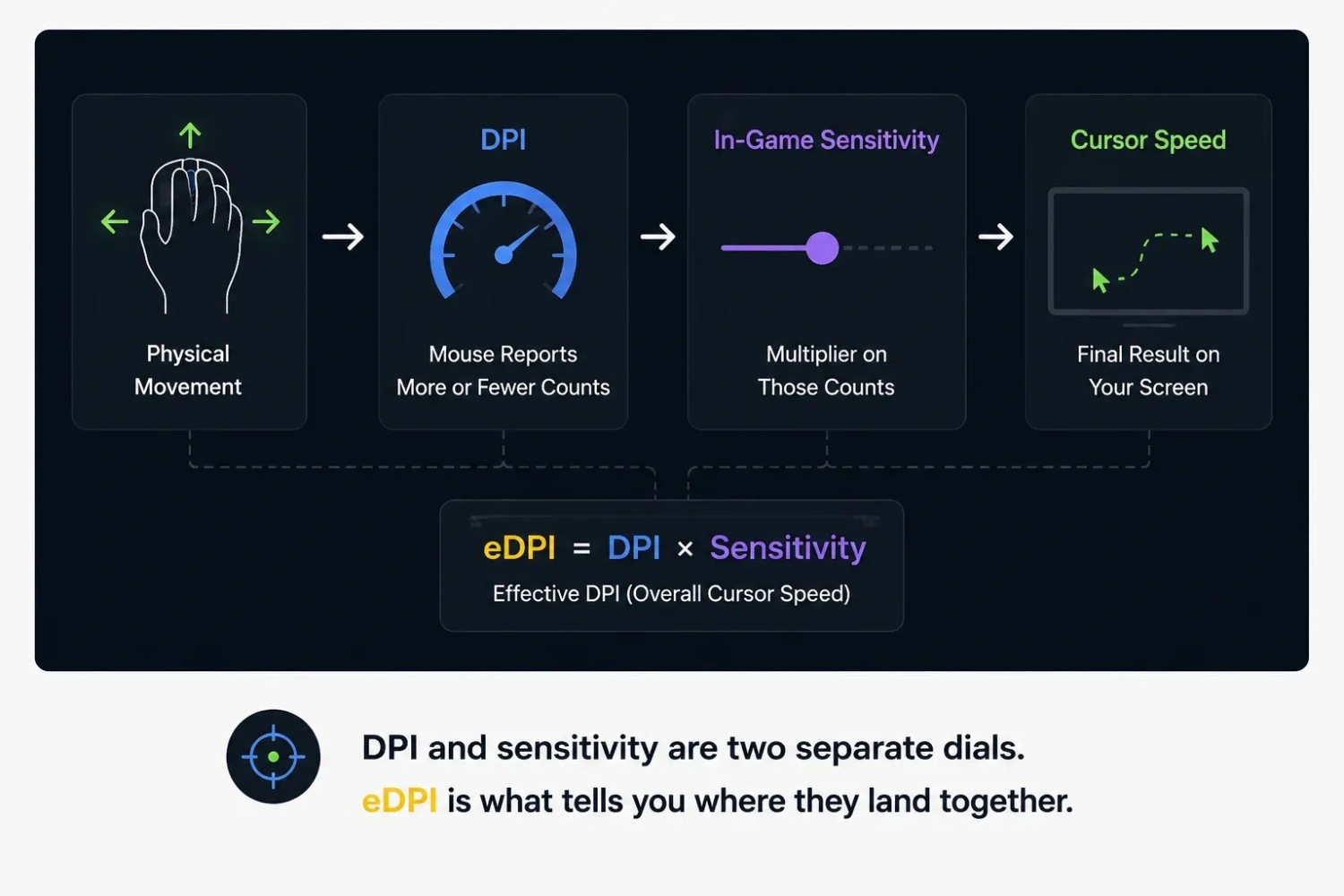
DPI is a hardware setting. Sensitivity is a software multiplier on top of it, set at the OS level or inside a game. The same DPI can feel different across two games if their scaling differs. Test raw DPI first, before you touch any in-game slider.
What eDPI Tells You That DPI Alone Cannot
Two players can run different DPI and sensitivity numbers and still land on the same cursor speed. eDPI cuts through that with one comparable figure. CORSAIR's eDPI calculator shows the math: multiply your mouse DPI by your in-game sensitivity. It works for decimal and percentage sensitivity systems alike.
What Is a Mouse Sensitivity Tester?
A mouse sensitivity tester is a browser tool. It checks how far your cursor moves on screen compared to how far you move your mouse by hand. That answers a simple question: Is your sensitivity what you think it is, or does it just feel that way?
This is where a mouse DPI tester fits in. DPI and sensitivity work together, but they are not the same thing. A DPI tester mouse tool measures the raw sensor output, how many pixels your mouse produces per inch of movement. The sensitivity side looks at how that output feels once your pointer settings and games sit on top of it.
Most people never question their sensitivity until their aim feels off. They raise it, lower it, and still cannot tell if the number on screen matches what the mouse is doing. A gaming mouse DPI tester closes that gap. It will not tell you what sensitivity to use, since that part is personal. But it shows you what your hardware is delivering right now.
Who Actually Needs to Test Sensitivity
In aim-heavy games, sensitivity sits between your hand and your crosshair. A mouse tester DPI check matters for competitive players who want to confirm their real DPI first. But you do not need to chase headshots to care about this. Anyone switching to a new mouse, a bigger monitor, or a new desk setup benefits from knowing their real DPI. A gap between the box and the sensor can make a new mouse feel sluggish or twitchy until you test it.
Common Sensitivity Problems This Tool Detects
- DPI that does not match your mouse software setting
- Cursor speed feels different between the desktop and games
- Sensitivity that feels "off" after switching mice or monitors
- Confusion between DPI, in-game sensitivity, and eDPI
- Settings that drifted after a software update or driver reinstall
Mouse DPI Tester and Gaming Mouse DPI Tester: What Competitive Players Look For
A DPI tester mouse tool measures one thing: how many pixels your cursor moves per inch of hand movement. It does not factor in in-game multipliers or OS pointer speed. You move the mouse a measured distance, and the tool tracks the cursor's travel. It will not match your spec to the exact digit. Pointer acceleration and hand variance shift the result slightly, but it catches a real mismatch.
A mouse rated at 800 DPI can read differently in a browser test. Pointer acceleration, measurement precision, and small sensor rounding all play a part. A gap of 5 to 10 percent is normal. A bigger gap that repeats across tests is worth checking in your mouse's own software first.
Competitive players use a gaming mouse DPI tester a bit differently than casual users. The goal is to lock in a known, repeatable DPI value, so in-game sensitivity can be tuned around something stable. Lower DPI, usually 400 to 800, rewards small, controlled hand movement and cuts overshoot during fine corrections. Higher DPI moves the cursor faster per inch, which suits desktop use or multi-monitor setups better.
| Use Case | Typical DPI Range | Why |
|---|---|---|
| Competitive FPS aiming | 400–800 | Rewards small, controlled movements |
| General gaming | 800–1200 | Balanced for varied genres |
| Desktop and productivity | 800–1600 | Comfortable for everyday navigation |
| Large or multi-monitor setups | 1600–3200 | Reduces hand travel across wide screens |
Why Pros Often Use Lower DPI Than Expected
People assume top players run high DPI for fast reactions. The opposite is usually true. Most use low DPI with a higher in-game multiplier. That combo gives smoother, more controllable tracking than raw sensor speed alone.
Finding a Sensitivity That Actually Works for You
Testing your DPI is the easy part. Finding a sensitivity that holds up under pressure is where most players struggle, and it is rarely a quick fix.
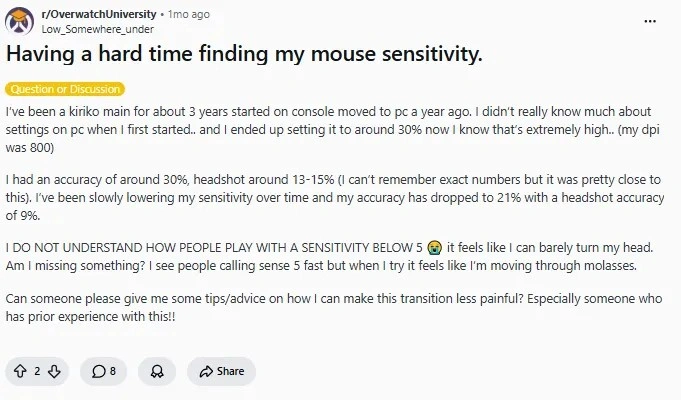
A pattern shows up often in gaming communities. A long-time console player moves to PC and keeps their sensitivity unusually high, since lower values feel unworkable at first. Over months, they lower it slowly, and accuracy dips before it recovers. One detail comes up again and again: wrist aiming versus whole-arm aiming. The wrist covers less physical distance than the arm. So a wrist-dominant player usually needs a higher number to match the same on-screen distance. Dropping sensitivity in one big jump makes the adjustment painful. Easing into it over several sessions is a far smoother way to go.
Instead of copying a pro player's exact number, most experienced users get there through small, steady changes. They test each change in a low-pressure practice mode first. Copying someone else's number rarely works, since grip, mousepad size, and aiming style all differ from player to player.
Mouse Sensitivity Tester vs DPI Tester vs Mouse Tester
A DPI tester measures raw sensor output only: pixels per inch of physical movement. A sensitivity tester adds OS pointer speed and in-game multipliers, which is what you actually feel while playing. A mouse tester is different again. It checks whether your buttons, scroll wheel, and side inputs register correctly, and has nothing to do with sensitivity.
Run a DPI test after a driver update to confirm your raw output still matches the spec. Run a full sensitivity check when your aim feels inconsistent across games despite a clean DPI reading. If something feels physically wrong with the mouse itself, like a missed click, test the buttons and scroll wheel first.
DPI and sensitivity might both check out clean. But if your cursor still feels a beat behind your hand, the cause could sit elsewhere. A polling rate tester checks how often your mouse reports its position to your computer. That is a timing issue, not a sensitivity one.
A CPS test measures click speed only and has no link to sensitivity or DPI. A mouse can post a fast CPS score and still feel wrong during play. One measures finger speed. The other measures cursor travel.
What Real Users Are Actually Asking About Sensitivity
A common theme shows up across gaming forums. Players want a structured way to land on a sensitivity instead of guessing. One user said they loved PC gaming but felt stuck on picking a number that suited their aim. They asked if there was an in-game test to check whether a sensitivity felt right.
The replies converged on a fairly consistent approach. Several players described using aim-training maps to find a comfortable sensitivity first. Then they carried that feel into other games with a sensitivity-matching tool. Others suggested a simpler check: how much mouse movement it takes to complete a full 360-degree turn. One mousepad swipe works as a benchmark. A few suggested testing in a private or single-player setting first, since match pressure makes a setting harder to judge.
One point came up more than once. The same DPI does not always feel the same across different games, since each one can scale sensitivity differently. That is part of why testing the raw number first works better than expecting one value to transfer everywhere.
The Mouse Sensitivity Health Check
Run these steps for a full read on your sensitivity setup.
Step 1: Confirm your raw DPI.
Check whether your mouse's real output matches what your software claims.
Step 2: Calculate your eDPI.
Multiply your confirmed DPI by your in-game sensitivity. That gives one comparable number for any game.
Step 3: Test consistency.
Repeat the same movement a few times. Wide swings usually mean inconsistent hand motion, not a hardware issue.
Step 4: Identify your aiming style.
Notice whether you move the mouse with your wrist or your whole arm.
Step 5: Adjust gradually.
Move toward a new sensitivity in small steps over several sessions, not all at once.
Results Benchmark Table
| Check | Healthy Result | Problem Signal |
|---|---|---|
| DPI accuracy | Within 5–10% of the rated spec | Large, consistent gap from rated DPI |
| Repeat consistency | Similar reading across attempts | Wide swings between identical movements |
| eDPI comparison | Matches intended feel across games | Same eDPI feels different per game |
| Adjustment period | Settles within a few sessions | Still feels unworkable after weeks |
Once the sensitivity and DPI check out, it is worth checking that your mouse's raw input is clean too. A double-click test rules out a switch fault that could quietly affect your clicks. This matters most during fast aim corrections, separate from anything sensitivity-related.
Conclusion
A mouse sensitivity tester answers a question that is easy to feel but hard to pin down alone. Is your sensitivity actually consistent, or have you been adjusting around a number that was never accurate?
The tool on this page measures your real DPI right in your browser, with no install needed. That lets you confirm your hardware delivers what it claims before you tune anything further. From there, eDPI gives you one stable number to compare across games. A gradual, structured adjustment gets you to a sensitivity that holds up under pressure.
Most sensitivity frustration comes down to one of two things: an inaccurate DPI reading or an adjustment made too fast. Rule both out, and what is left is usually just time and repetition.
Frequently Asked Questions
What is a mouse sensitivity tester?
A browser tool that measures how far your cursor moves compared to a known physical mouse movement. It gives an approximate DPI reading, so you can check whether your mouse's output matches the DPI in your mouse software.
How do I test my mouse DPI?
Move your mouse a fixed, measured distance, commonly 10 centimeters, in a straight line. Compare the cursor movement against that distance. A DPI tester mouse tool does this math for you.
Why does my measured DPI not match the rated spec?
A small gap, within 5 to 10 percent, is normal. It comes from OS-level pointer acceleration and small variance in hand movement. A large, consistent gap is worth checking in your mouse's own software first.
What is eDPI and why does it matter?
eDPI is your mouse DPI multiplied by your in-game sensitivity. It gives you one number that shows your true sensitivity, no matter which slider values you use. That makes it easier to compare across games.
Is a higher DPI better for gaming?
Not necessarily. Many competitive players use lower DPI, often 400 to 800, paired with a higher in-game multiplier. This tends to give a smoother, more controllable aim than a high raw DPI alone.
Does aiming with my wrist vs my arm affect what sensitivity I should use?
Yes. Wrist-based aiming covers less distance than full-arm aiming. Wrist-dominant players typically need a higher sensitivity. That matches the same on-screen distance an arm-dominant player covers with a lower one.