How to Test Your Mouse Online
The mouse tester at the top of this page works directly in your browser, no download, no registration, no software install. If you searched for a mouse tester download or want to download mouse tester software for offline use, the browser version covers everything most people need without installing anything. It works on Windows, Mac, and Linux with any wired or wireless mouse your OS recognizes.
Step 1: Click inside the dark zone.
The border turns solid green to confirm the tool is live, with a ripple marking where you clicked.
Step 2: Test left click first.
As a mouse click tester online, the left button wears out first since it's the most-used. The "Left Click" row should light up and read 1. If it reads 2 from a single press, that's a double-click fault.
Step 3: Right-click inside the zone.
This is the mouse tester right-click step, sometimes searched as a right-click tester on its own. The browser's context menu is blocked, so your click is captured instead.
Step 4: Press the scroll wheel down for a middle click.
This works as a dedicated middle mouse click tester. Don't scroll; press the wheel straight down like a button.
Step 5: Scroll up and down to test the wheel.
Each notch adds one event. If one notch jumps the counter by two or three, the encoder is starting to fail.
Step 6: Press your side buttons if your mouse has them.
Back and Forward are mouse buttons 4 and 5. Some ship disabled in firmware; check your mouse software first.
Step 7: Watch the progress bar and history log.
The bar fills from 0/6 to 6/6. The log shows each event as a colored pill; more pills than physical presses is your fault signal. Use Clear to reset the log, or Reset All to wipe every counter.
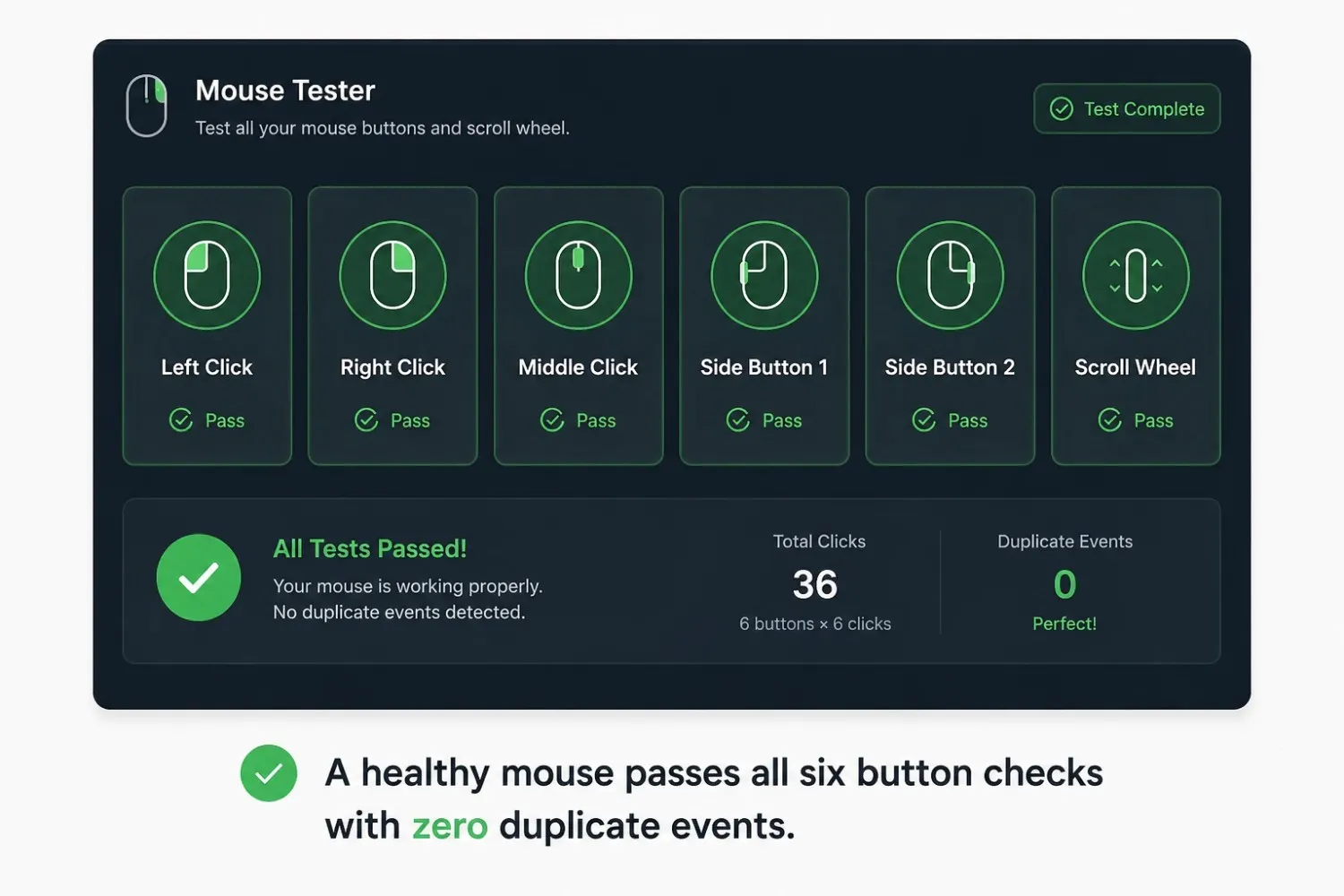
Test Right Click
Right-click is captured cleanly because the browser's context menu is suppressed inside the zone. The event fires on mousedown, so registration happens the moment the button goes down. If it's inconsistent, check whether system-level remapping software is intercepting the signal first.
Test Middle Click
The middle mouse click is activated by pressing the scroll wheel straight down. It registers as a separate event from scrolling, shown as a yellow "M" pill. It's the least-tested button, which is why middle-click failures go unnoticed for months.
Test Side Buttons (Back & Forward)
Side buttons appear as red and orange pills in the history log. Not every mouse has them, and some ship with them disabled by default. If they seem physically fine but don't register here, open your mouse companion software first; they're likely mapped off by default.
What Is a Mouse Tester?
A mouse tester is a tool, browser-based or desktop software, that checks whether your mouse buttons, scroll wheel, and inputs are registering correctly. You click a button, and it tells you whether the signal reached your computer cleanly, how many times it fired, and whether anything unexpected happened in between.
Most people only think about testing their mouse after something goes wrong. A double-click fires when you only press once. The scroll wheel skips a few lines. A side button stops responding mid-game. A keyboard and mouse tester catches these patterns before you spend money replacing hardware that might just need a driver update or a surface change.
The truth: in most cases, the fault is detectable long before the hardware is dead. A free online mouse button tester takes about two minutes and gives you a clear answer: Is this a mouse problem or something else entirely?
Why Gamers Use Mouse Testing Tools
A single missed click in Valorant or CS2 is a direct performance hit. As a click tester, mouse software like this verifies every button registers exactly once per press, and checks for input delay between the press and the signal reaching the game. A mouse delay tester is useful here, and even a basic USB mouse tester can surface timing issues quickly.
Why Regular Users Test New Mice
When a new mouse arrives, it's worth running a quick function test before the return window closes, confirming scroll wheel input, click registration, and side buttons work right out of the box. An online mouse function tester handles this in about two minutes, which is one of the most common reasons people search for an online mouse and keyboard tester.
Common Mouse Problems This Tool Detects
As a mouse key tester, this tool catches the same handful of faults that come up again and again:
- Left or right click not registering every time
- Double-clicking from a single physical press
- Scroll wheel skipping, jumping, or reversing direction
- The middle button is not responding to pressing
- Side buttons (back/forward) failing silently
- Input feeling delayed or inconsistent under use
Mouse Button Tester
A proper mouse button test checks timing accuracy, whether a single press produces one clean signal or quietly sends two. This is the root cause of most "my mouse is broken" complaints that turn out to be fixable.
Double-Click Detection
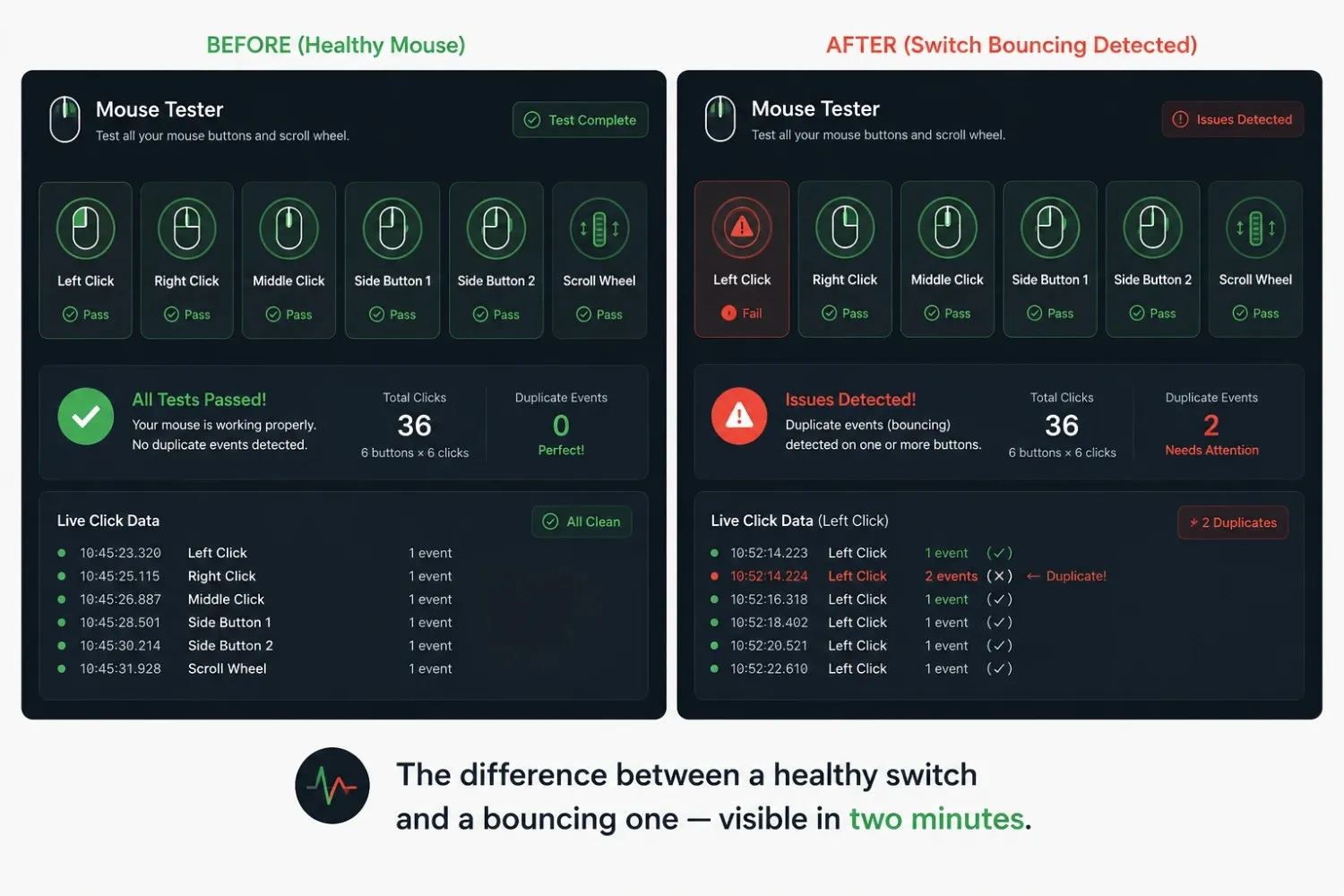
Double-clicking is invisible until it ruins something, an accidental file open, a double-shot in a game, a failed drag-and-drop. The switch develops contact bounce: the contact closes, reopens, and closes again faster than the threshold your OS uses to tell two clicks apart. A 50ms threshold is a common reference, sometimes tunable from 1ms to 999ms depending on what you're diagnosing. Consistent doubles mean the switch needs cleaning or replacement.
Stuck Button Detection
Acting as a mouse long click tester, the history log also catches a stuck button, a delayed mouseup event where the button doesn't spring back cleanly, usually from debris under the shell or early-stage switch failure. You'll see rapid-fire press-and-release pairs instead of clean single events. One thing that also trips people up: duplicate scroll events when scrolling quickly aren't normal; that's encoder wear.
A user asked for a reliable freeware testing utility after getting confusing results from an online tool. Their mouse was reporting around 400 CPI, and the polling graph showed a rough sine wave they couldn't interpret. The thread responses were honest: desktop graph tools are only useful with an optimized system and minimal background processes, since system noise affects readings. For higher polling rate mice, the community recommended Mouse Tester v1.4 or higher alongside a dedicated polling rate checker.
Mouse DPI Tester
DPI controls how far your cursor moves per inch of physical movement. A mouse at 800 DPI moves 800 pixels per inch; at 1600 DPI, it moves twice as far over the same distance, twice as fast, not twice as accurate.
As an optical mouse tester, browser-based DPI tools measure pixels traveled over a known physical distance, then approximate your actual DPI. It won't match the spec exactly due to OS pointer acceleration, but it's close enough to spot major discrepancies.
How DPI Testing Works
Move the mouse a measured distance, 10cm is common, and divide pixel displacement by that distance, then multiply by 2.54 to convert to inches. The RTINGS guide on mouse DPI and sensitivity explains how rated DPI differs from effective DPI after OS scaling, useful if your result seems off from the spec sheet.
Recommended DPI Settings
| Use Case | Recommended DPI | Why |
|---|---|---|
| Competitive FPS gaming | 400–800 | Rewards fine motor control, reduces overshoot |
| General desktop use | 800–1200 | Balanced for productivity |
| Multi-monitor setups | 1200–2400 | Covers more screen without wrist fatigue |
| Graphic design/precision work | 400–600 | Slow, precise movement for detail |
Mouse Polling Rate Tester
Polling rate is how many times per second your mouse reports its position, measured in Hz, which is also why this works as a mouse input lag tester for diagnosing timing-related delay rather than click faults. A mouse at 125 Hz sends 125 updates per second; at 1000 Hz, it sends 1000, keeping the cursor position, and your game receives more current.
A scenario that comes up often in gaming communities: a player whose shots occasionally failed to register despite a clean button test. A polling rate check revealed inconsistent reporting, creating gaps in input delivery. The issue was timing, not aim, and a button tester alone wouldn't have caught it.
For a full breakdown, the mouse polling rate tester covers 125 Hz through high-frequency 4K/8K polling with real-time Hz readings.
| Polling Rate | Update Interval | Common Use |
|---|---|---|
| 125 Hz | 8ms | Budget mice, office use |
| 500 Hz | 2ms | Mid-range gaming |
| 1000 Hz | 1ms | Standard competitive gaming |
| 4000–8000 Hz | 0.125–0.25ms | High-end competitive mice |
Mouse Output Tester
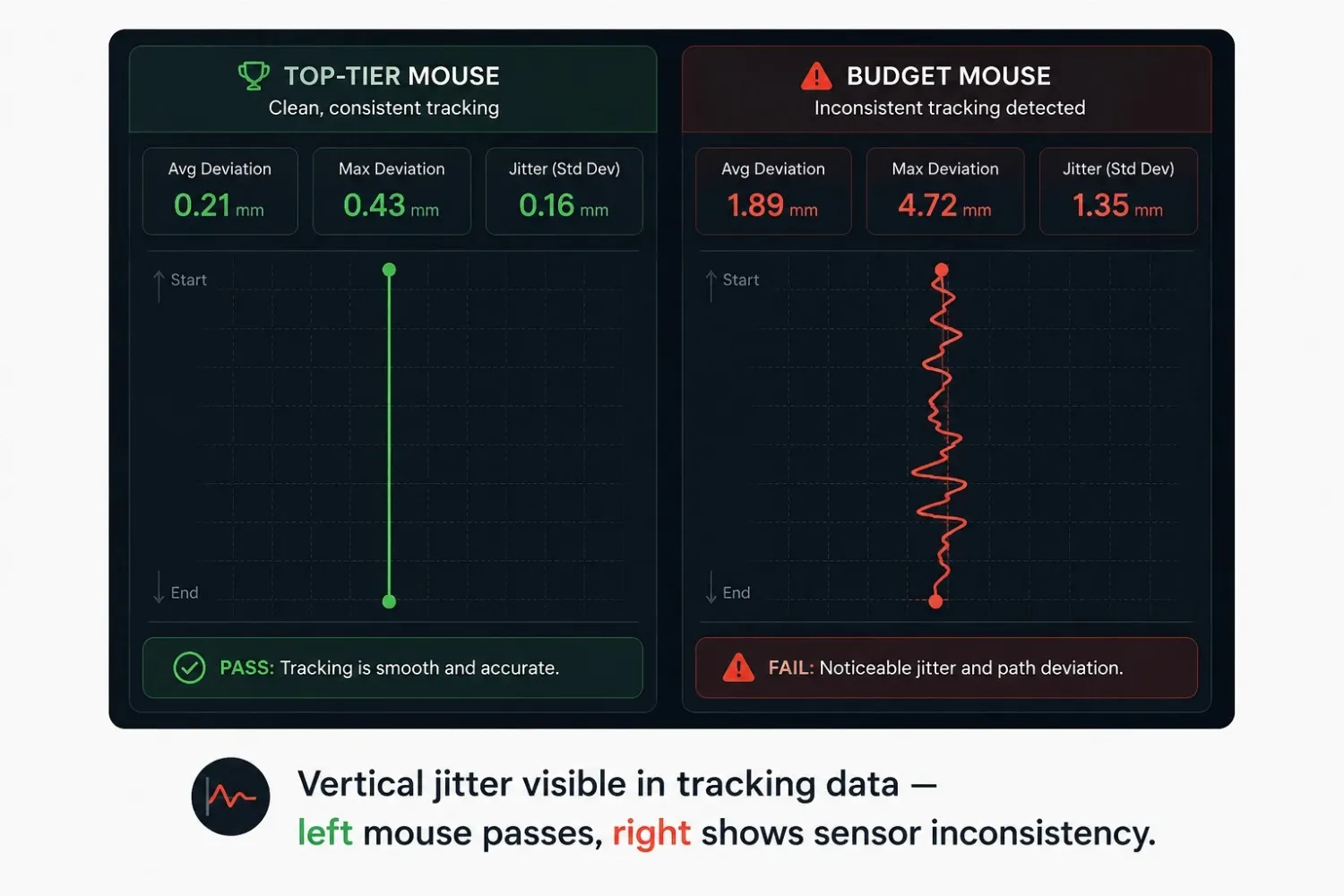
A mouse output test checks whether your cursor tracks smoothly, not just whether buttons click. Most online testers measure click speed and never check whether the cursor drifts, stutters, or jitters along what should be a straight line.
- Jitter-clicking speed is not a measure of mouse quality. You can jitter-click 25 CPS with a cheap mouse and 12 CPS with a top-tier one; click speed measures your finger, not the sensor. What actually reveals tracking quality is vertical jitter, average deviation from a straight path, and micro-stutter at low speeds. The precision movement test scores these directly for comparison across mice.
- From testing ~30 gaming mice: Top-tier mice average jitter under 0.3mm with scores above 95/100. Mid-range land between 0.4–0.7mm and 80–94/100. Budget mice often exceed 0.8mm and score below 75/100, with visible micro-stutter. Two mice with identical CPS ratings showed a 30–40% gap in actual tracking precision; click speed told us nothing about which one tracked better.
Mouse Tester vs Other Diagnostic Tools
A button tester, a DPI tester, a polling rate tester, and a CPS test all answer different questions; mixing them up is the most common mistake in mouse diagnostics.
- A button tester tells you whether inputs register correctly; use it when clicks aren't firing or double-register.
- A DPI tester tells you whether your sensitivity matches what it's set to, use it when aim feels off, but clicking is fine.
- A polling rate tester confirms correct reporting frequency; this is timing, not accuracy, worth checking when inputs go missing despite a clean button test.
- A CPS test measures how fast you can click; it tells you nothing about your sensor, DPI, scroll wheel, or polling rate.
A mouse with a failing switch can still score 20+ CPS and double-click randomly in a game the same day; accuracy and speed are independent. If you're diagnosing a real problem, skip the CPS test and run the button and movement tests above instead.
The 5-Minute Mouse Health Check
Run all five checks in sequence for a complete picture of whether your mouse needs attention, maintenance, or replacement.
Step 1: Test all buttons.
Every button should register exactly once per press.
Step 2: Run the scroll wheel test.
Scroll slowly and watch for duplicate events or direction inversions.
Step 3: Check for double-click behavior.
Single-click 20–30 times at moderate speed; the switch is bouncing if the count exceeds your presses.
Step 4: Check your mouse's polling rate.
Verify it holds steady at its rated Hz under normal use.
Step 5: Run a precision movement test.
Draw a slow, straight line and check for jitter against your mouse tier's expected range.
Results Benchmark Table
| Test | Healthy Result | Problem Signal |
|---|---|---|
| Button test | 100% register, no doubles | Any missed or duplicate inputs |
| Double-click check | Zero unintended doubles | Count exceeds physical presses |
| Scroll wheel test | No jumps or reverse direction | Duplicate events, direction flip |
| Polling rate | Within 5–10% of rated Hz | Significant fluctuation or drop |
| Movement/jitter | Straight line, score above 90 | Visible drift, stutter, or deviation |
Pass all five → mouse is healthy.
Fail one or two → maintenance is likely enough (clean sensor, update drivers, replace one switch).
Fail three or more → the mouse is at the end of its usable life.
Common Mouse Problems and What to Test
| Symptom | Likely Cause | Test to Run |
|---|---|---|
| Double-clicking from a single press | Switch wear (contact bounce) | Button test, double-click check |
| Scroll wheel skipping or reversing | Encoder wear | Scroll wheel test |
| Cursor skipping or stuttering | Sensor issue or dirty surface | Precision movement test |
| Missed clicks in games | Polling rate instability | Polling rate tester |
| Input feels delayed or laggy | Low polling rate, USB power, or drivers | Polling rate + button latency |
| Side buttons not working | Firmware mapping, driver conflict | Button test → check mouse software |
| Right-click not responding | Failing switch or OS remap | Right-click test → check settings |
When a Browser Mouse Tester Is Not Enough
Browser-based mouse testers detect symptoms accurately but don't diagnose the root cause at the hardware level. A few failure modes look like mouse problems, but sit outside what software can surface:
- USB power issues: inconsistent power from some motherboard ports causes intermittent disconnects that feel like click failures; try a different port first.
- Driver conflicts: third-party software can remap buttons or add latency; uninstall it and test with the OS's generic HID driver.
- Wireless interference: 2.4GHz mice can pick up interference from routers and other devices; test wired to rule it out.
- Surface tracking problems: reflective or glass surfaces confuse optical sensors; test on a matte mousepad first.
- OS input bugs: some system updates have affected mouse behavior; a clean boot test isolates OS-level interference.
If your button test comes back clean but the problem persists, work through this list before replacing the mouse.
Testing Mouse Sensitivity Alongside Button Health
Once buttons check out, sensitivity is usually the next variable affecting how a mouse feels. DPI alone doesn't tell the full story; OS pointer speed, in-game multipliers, and polling rate all affect cursor response together. If your mouse passes the button tests above but still feels off, running a mouse sensitivity check can isolate a miscalibrated sensitivity stack from an actual hardware fault.
Conclusion
A mouse tester answers the question that matters most about your hardware: is this actually broken, or is something else going on? The tool above checks every button, the scroll wheel, and side inputs in about two minutes, no download, no setup, and it works with wired and wireless mice on Mac and Windows.
Click speed is not the same as click quality. A mouse can register 20 CPS in a jitter test and still double-click randomly in use. What matters is button accuracy, scroll consistency, double-click detection, and polling rate stability. Run the five checks above, compare against the benchmark table, and you'll have a clear answer, not a guess. Most people who think their mouse is broken end up fixing a driver conflict or a USB port issue.
Frequently Asked Questions
What is the best online mouse tester?
It depends on what you need. For button and scroll wheel testing with no setup, a browser-based tool handles all six inputs in under two minutes. For polling rate graphs and CPI data, a desktop application gives you raw data over time. For double-click diagnosis, a tool with an adjustable time threshold lets you tune sensitivity to your exact symptom. Most users need the browser tool first.
Can a mouse tester detect double-click issues?
Yes. Click the left button once and watch whether the counter increments by one or two. If a single press produces two events within a short window, that's switch bounce. Confirm it by clicking 20–30 times at a moderate pace and comparing your physical presses to the event count.
Do I need to download software to test my mouse?
No. Browser-based testers use native input events and require no installation. If you're comparing mouse button tester software against a browser tool, or searching for mouse click tester software online, the answer is the same: a browser tool covers button and scroll diagnostics without installing anything, and dedicated software is only worth it if you need polling rate graphs.
How do I know if my mouse sensor is faulty?
A faulty sensor shows up as cursor jumping, skipping at low speeds, or inconsistent tracking. Run a precision movement test and draw a slow, straight line, a healthy sensor produces a clean path with minimal deviation. Rule out the surface and clean the sensor lens before concluding the hardware is defective.
Is a mouse tester free?
Yes. The mouse tester on this page is completely free with no account, no download, and no time limit. As a mouse tester utility, it covers button registration, scroll wheel checks, and double-click detection at no cost.